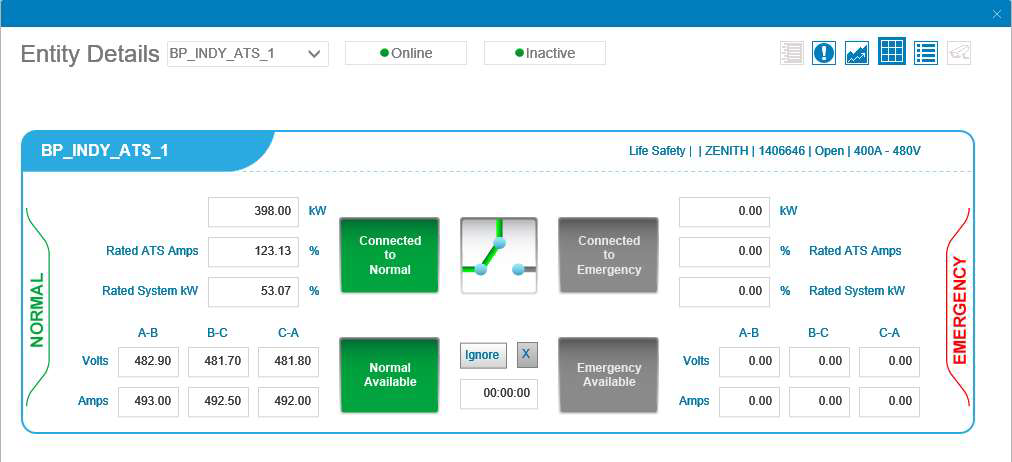
The Operations Summary feature facilitates equipment monitoring and alarm activity by building, floor, and room.
To access the Operations Summary:
-
Select the Operations menu option.
-
Select Summary from the menu list so that the platform displays the Operations Summary.
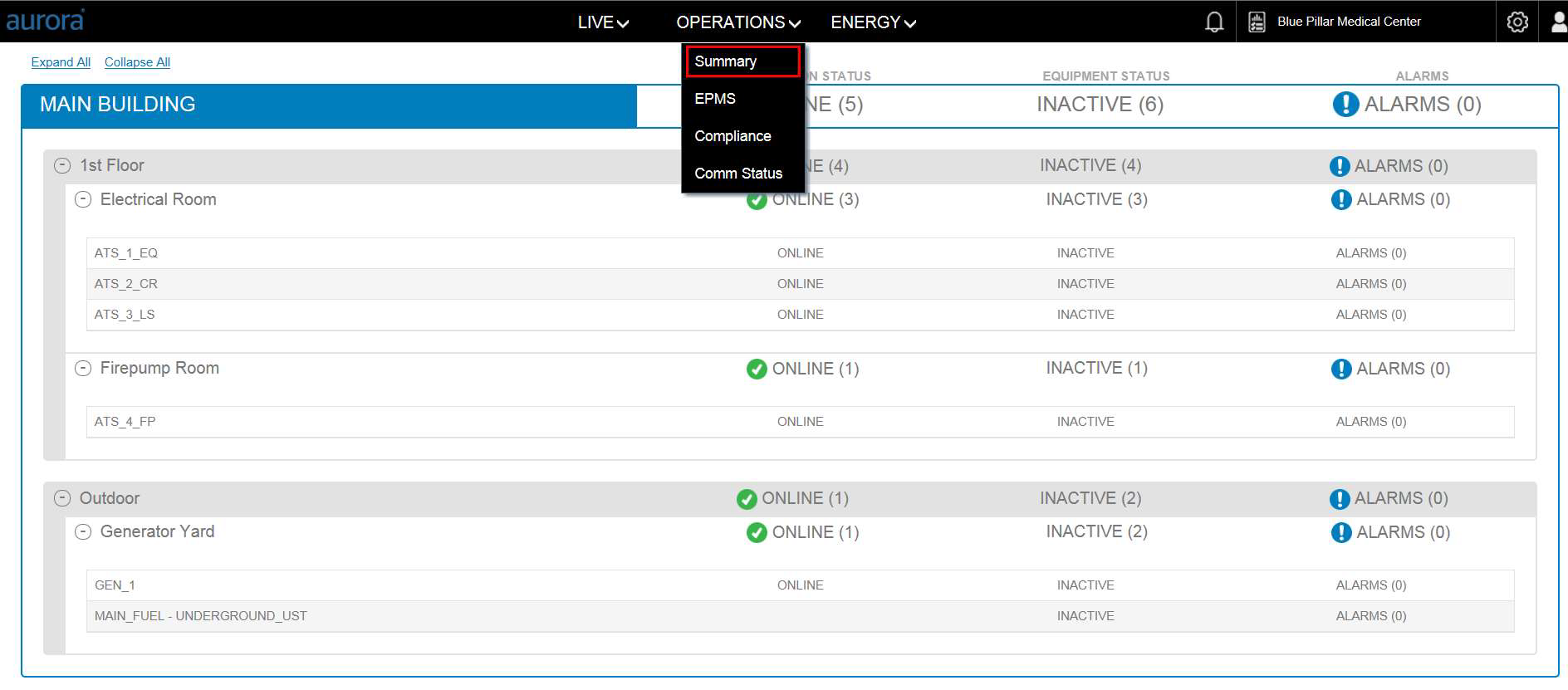
To collapse or expand sections of the screen use the (-) and (+) buttons next the section header or the Expand All/Collapse All options in the upper right-hand corner.
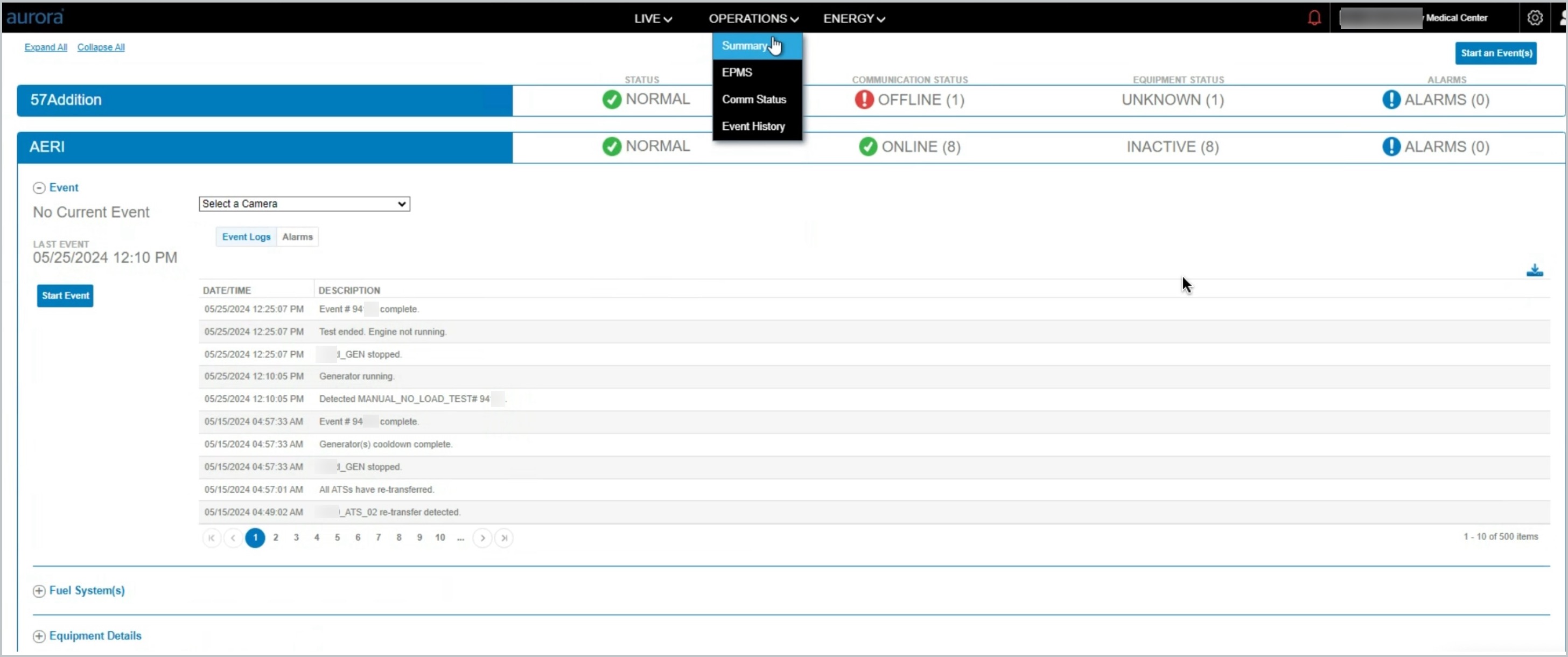
The Communication Status column indicates the number of assets that are both offline or online on the summary view.
|
OFFLINE |
ONLINE |
The Equipment Status column indicates the status of the equipment/asset.
|
ACTIVE |
Running on generator power |
|
INACTIVE |
“Ready” and on utility power |
|
NOT READY |
Generator is in Not in Auto mode |
|
IGNORE |
ATS was put in Maintenance mode in Aurora |
|
UKNOWN |
Platform is uncertain of status |
The Alarm column provides the following alarm status values. Parenthesis indicate the
|
ALARMS (0) |
No Alarms |
|
ALARMS (1) |
Active Alarms |
|
ALARMS (1) |
Not an active alarm, however it is unacknowledged. |
Equipment Details
Click into the equipment row on the Operations Summary so that the platform will display equipment values.