
There are two options to access the platform securely. The platform can be setup to authenticate with a domain username and password from an active directory within your organization. With that setup the user can access the application without logging in. Or, using a traditional login, enter the Username and temporary password on the sign-In page provided by Support.

Standard Sign In
-
Select the Aurora On-prem shortcut or bookmark to open your browser to a platform login screen.
-
Enter the username and temporary password. You will need to reset this value, as described in this section.
-
Click Log In to launch the home page.
The Aurora platform allows 6 sign in attempts. After 6 unsuccessful attempts, the platform will be locked for 30 minutes.

Reset Password
-
From the Sign In screen, select the Forgot my password link. The platform presents the Password Reset modal.
-
Enter the current username and the email address associated with the user account.
-
Click to select the Submit button. The platform will send an email to the address on file with a password modal.
Change Password
-
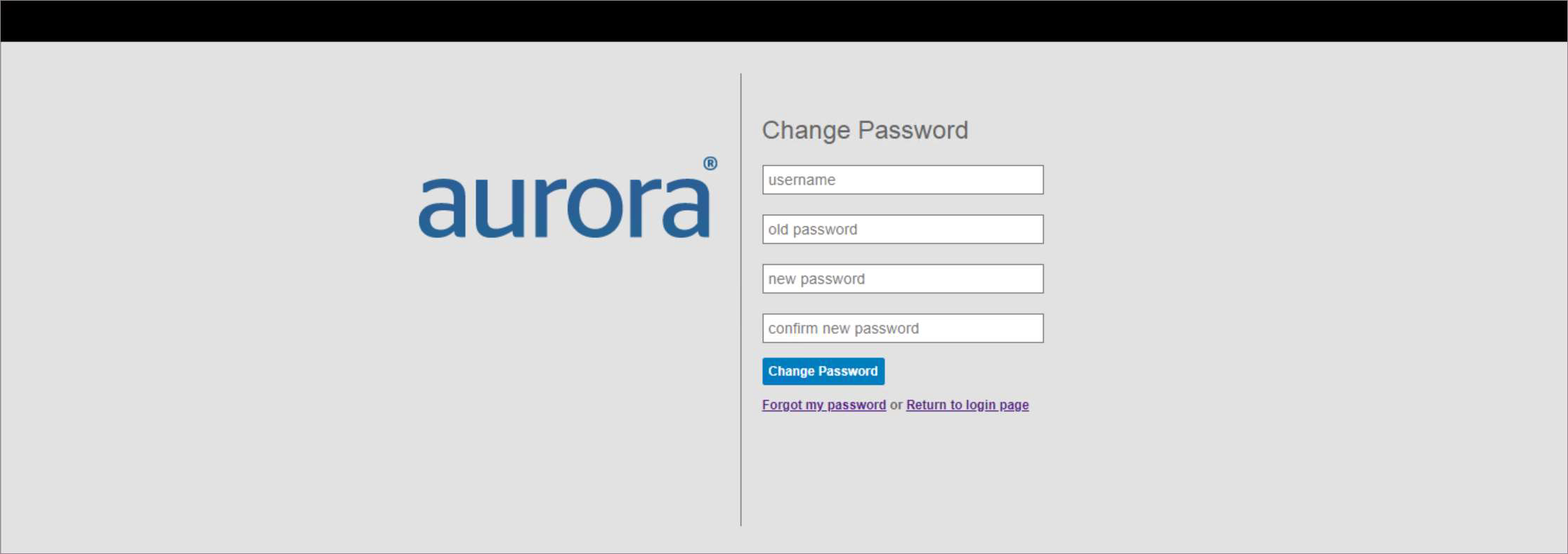
Click the Change my password link; the platform presents the Change Password modal.
-
Enter the username, old password and provide a new password entry. Enter the new password value again to confirm.
-
Enter the security code, if prompted by CAPTCHA.

-
Click the Change Password button. The platform presents a Sign-In screen to login with the new password.
Passwords must be at least 8 characters.