Login Support
There are two options to access the platform securely. The platform can be setup to authenticate with a domain username and password from an active directory within your organization. With that setup the user can access the application without logging in. Or, using a traditional login, enter the Username and temporary password on the sign-In page provided by Support.

Standard Sign In
Select the Aurora On-prem shortcut or bookmark to open your browser to a platform login screen.
Enter the username and temporary password. You will need to reset this value, as described in this section.
Click Log In to launch the home page.

The Aurora platform allows 6 sign in attempts. After 6 unsuccessful attempts, the platform will be locked for 30 minutes.

Reset Password
From the Sign In screen, select the Forgot my password link. The platform presents the Password Reset modal.
Enter the current username and the email address associated with the user account.
Click to select the Submit button. The platform will send an email to the address on file with a password modal.
Change Password
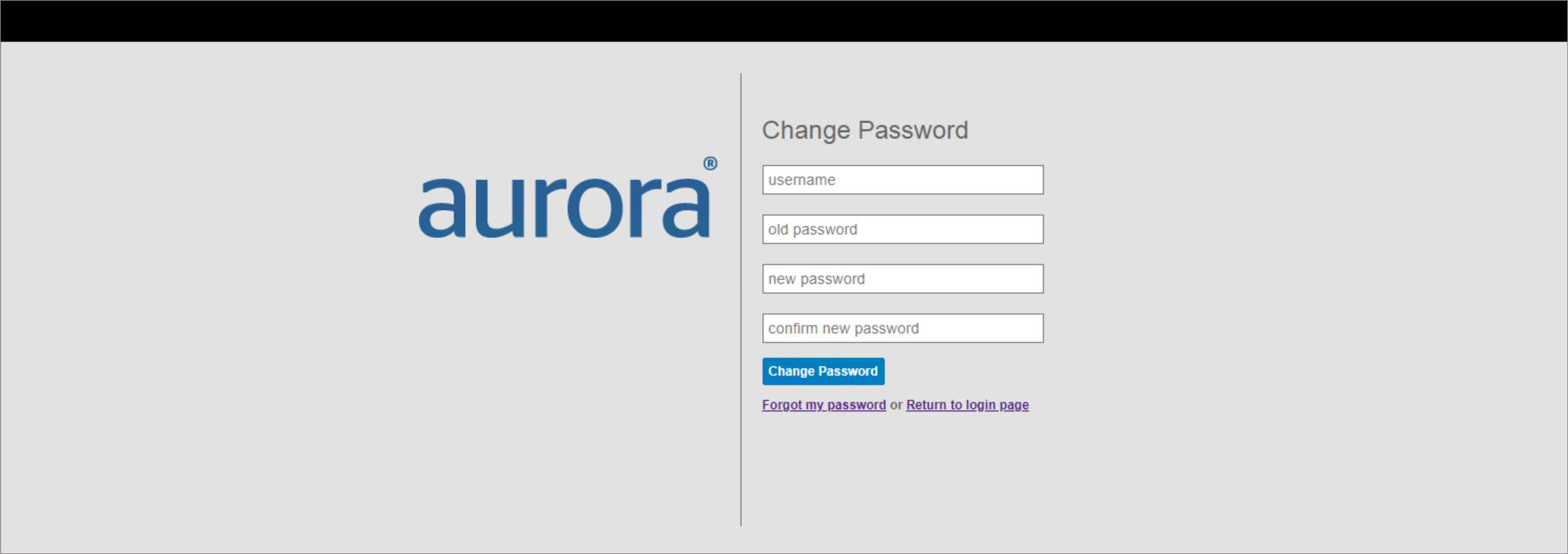
Click the Change my password link; the platform presents the Change Password modal.
Enter the username, old password and provide a new password entry. Enter the new password value again to confirm.
Enter the security code, if prompted by CAPTCHA.

Click the Change Password button. The platform presents a Sign-In screen to login with the new password.
Passwords must be at least 8 characters.