
Operations Summary
The Operations Summary feature facilitates equipment monitoring and alarm activity by building, floor, and room.
To access the Operations Summary:
Select the Operations menu option.
Select Summary from the menu list so that the platform displays the Operations Summary.
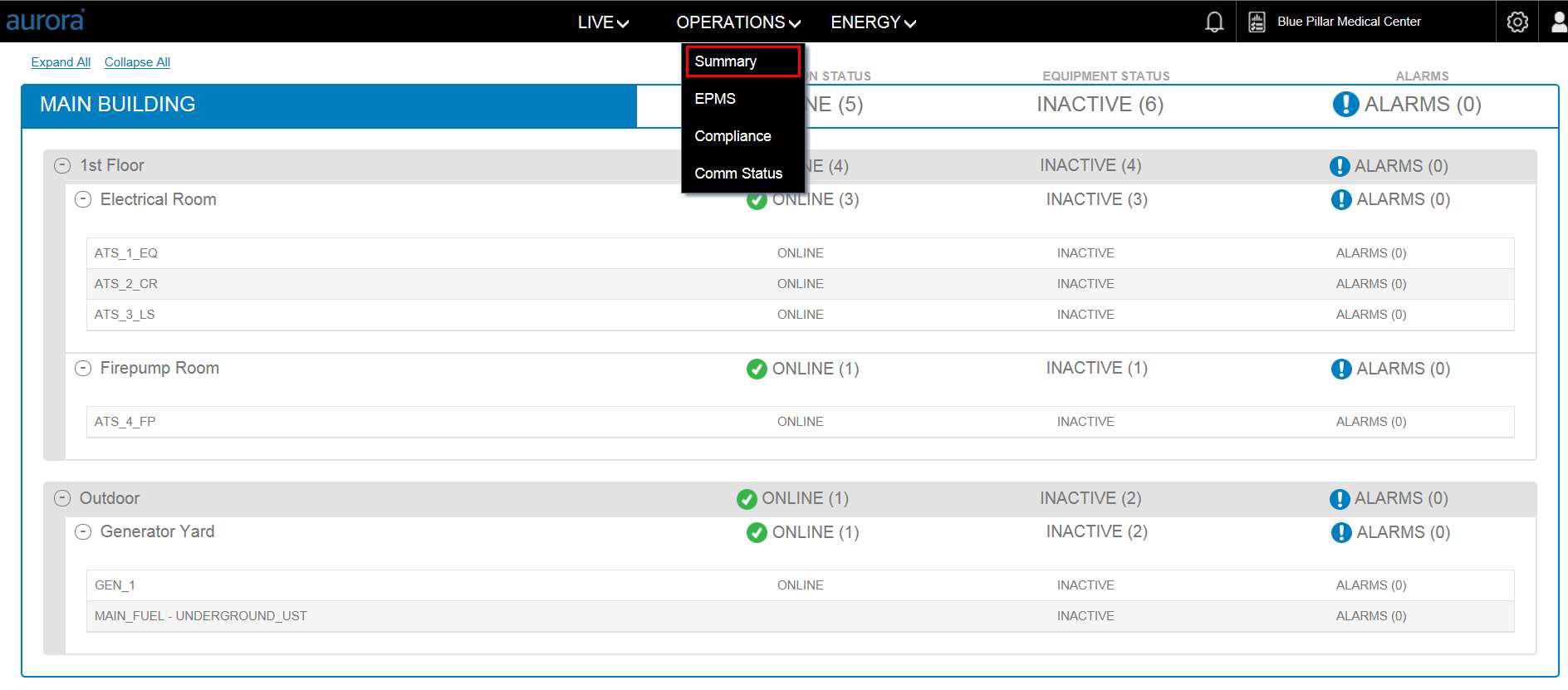
Operations: Summary

To collapse or expand sections of the screen use the (-) and (+) buttons next the section header or the Expand All/Collapse All options in the upper right-hand corner.
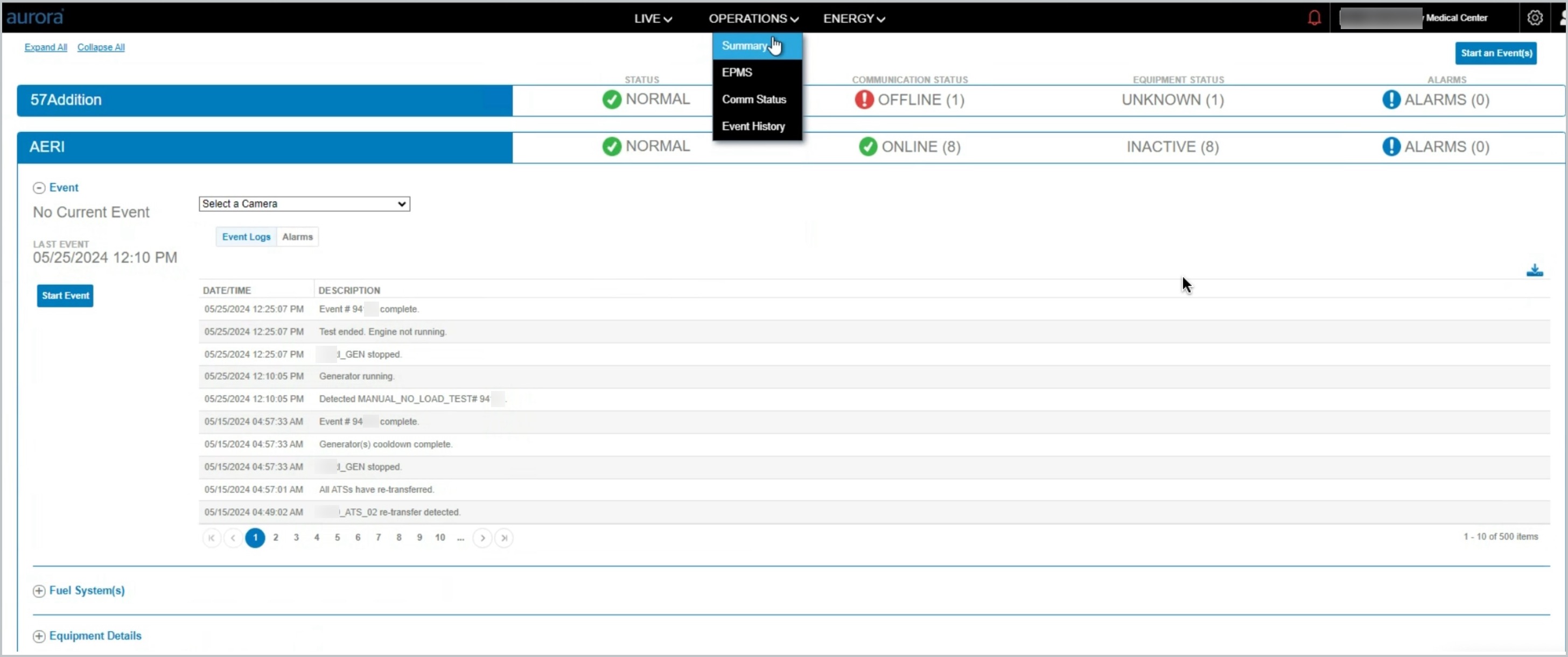
Operations: Menu Selection
The Communication Status column indicates the number of assets that are both offline or online on the summary view.
OFFLINE | ONLINE |
The Equipment Status column indicates the status of the equipment/asset.
ACTIVE | Running on generator power |
INACTIVE | “Ready” and on utility power |
NOT READY | Generator is in Not in Auto mode |
IGNORE | ATS was put in Maintenance mode in Aurora |
UKNOWN | Platform is uncertain of status |
The Alarm column provides the following alarm status values. Parenthesis indicate the
ALARMS (0) | No Alarms |
ALARMS (1) | Active Alarms |
ALARMS (1) | Not an active alarm, however it is unacknowledged. |
Equipment Details
Click into the equipment row on the Operations Summary so that the platform will display equipment values.
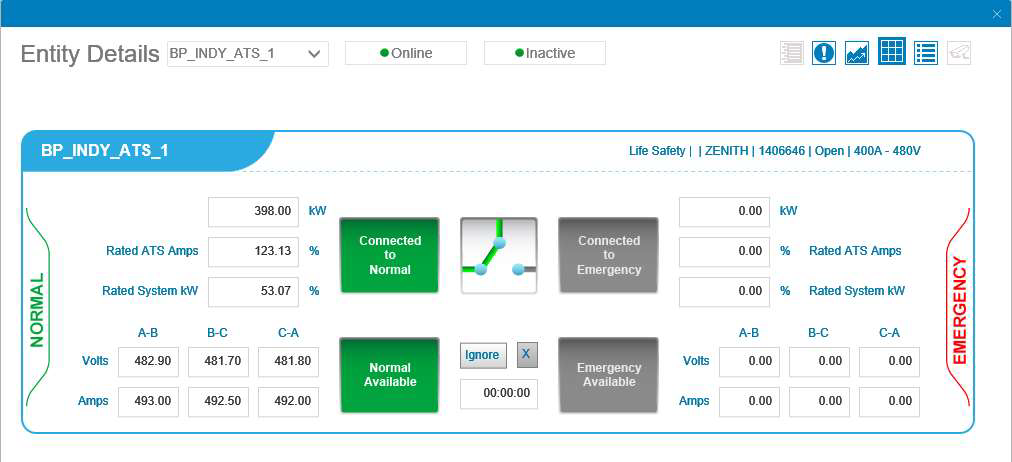
Equipment Details