
Live View for Individual Sites
From Entity Details, the user has access to system schematics and custom views for monitoring and controlling configured equipment.
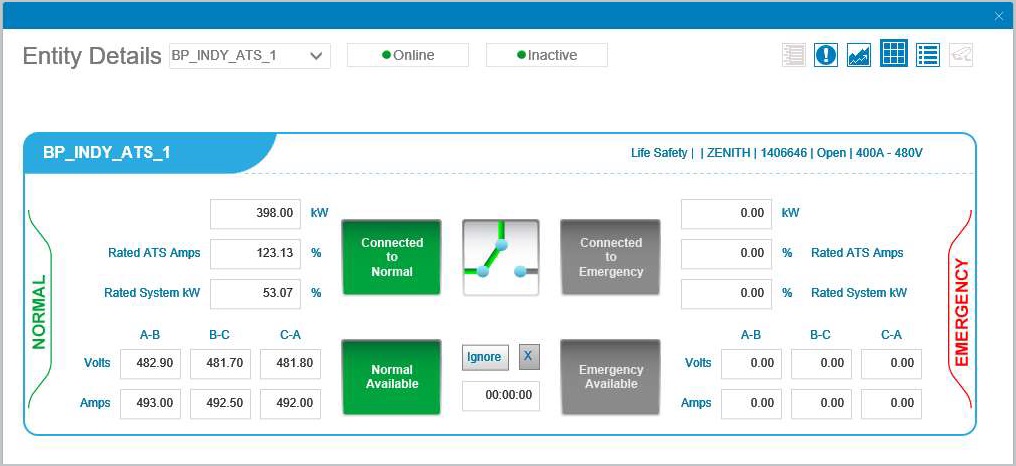
Accessing Live View Feature
Select the Live menu option so that the platform will display a list of custom live views.
Select a live view sub menu option so that the platform will display the custom live views.
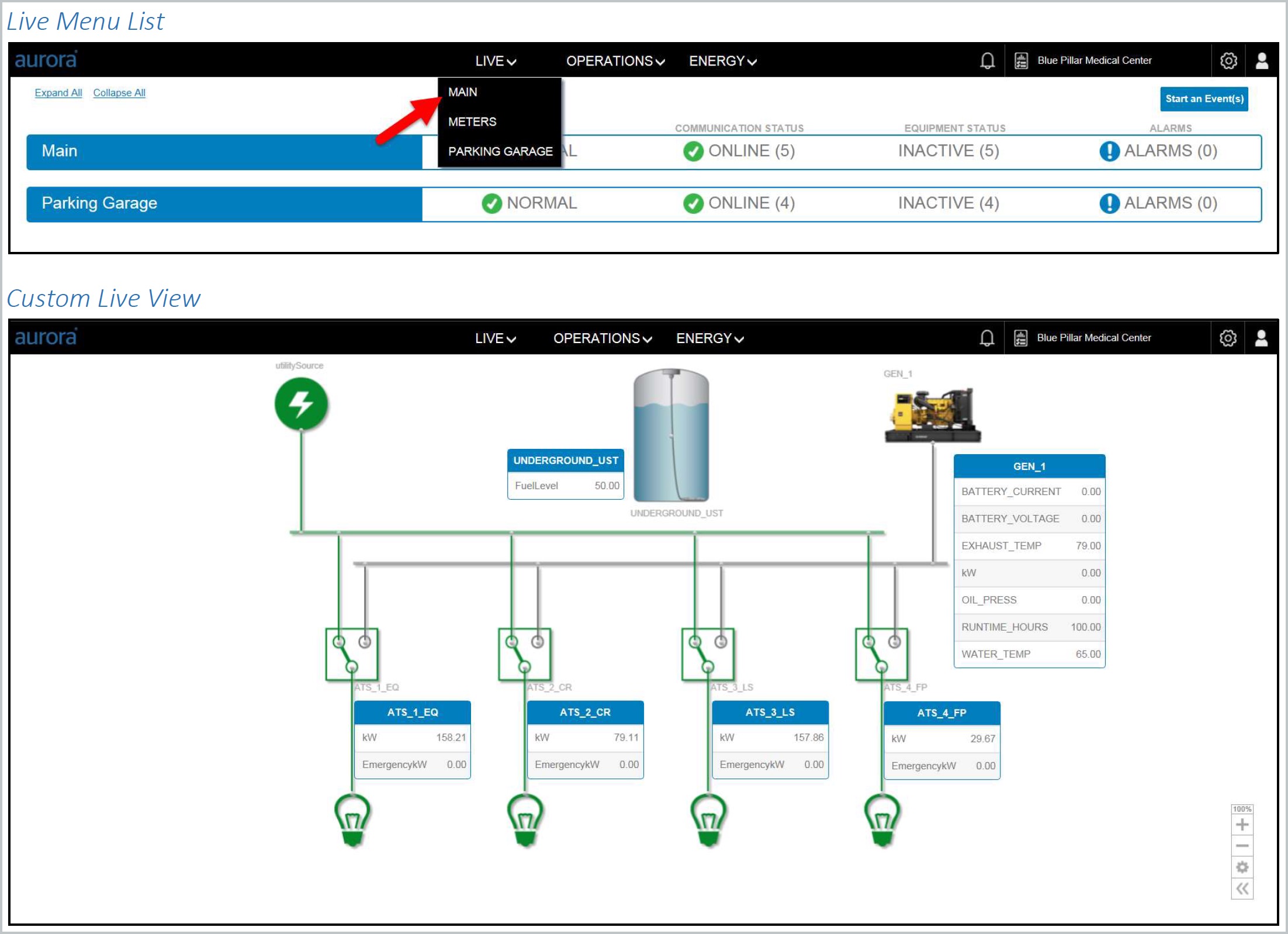
Live Menu List
Located in the lower left hand corner is the Live View zoom and pan options.
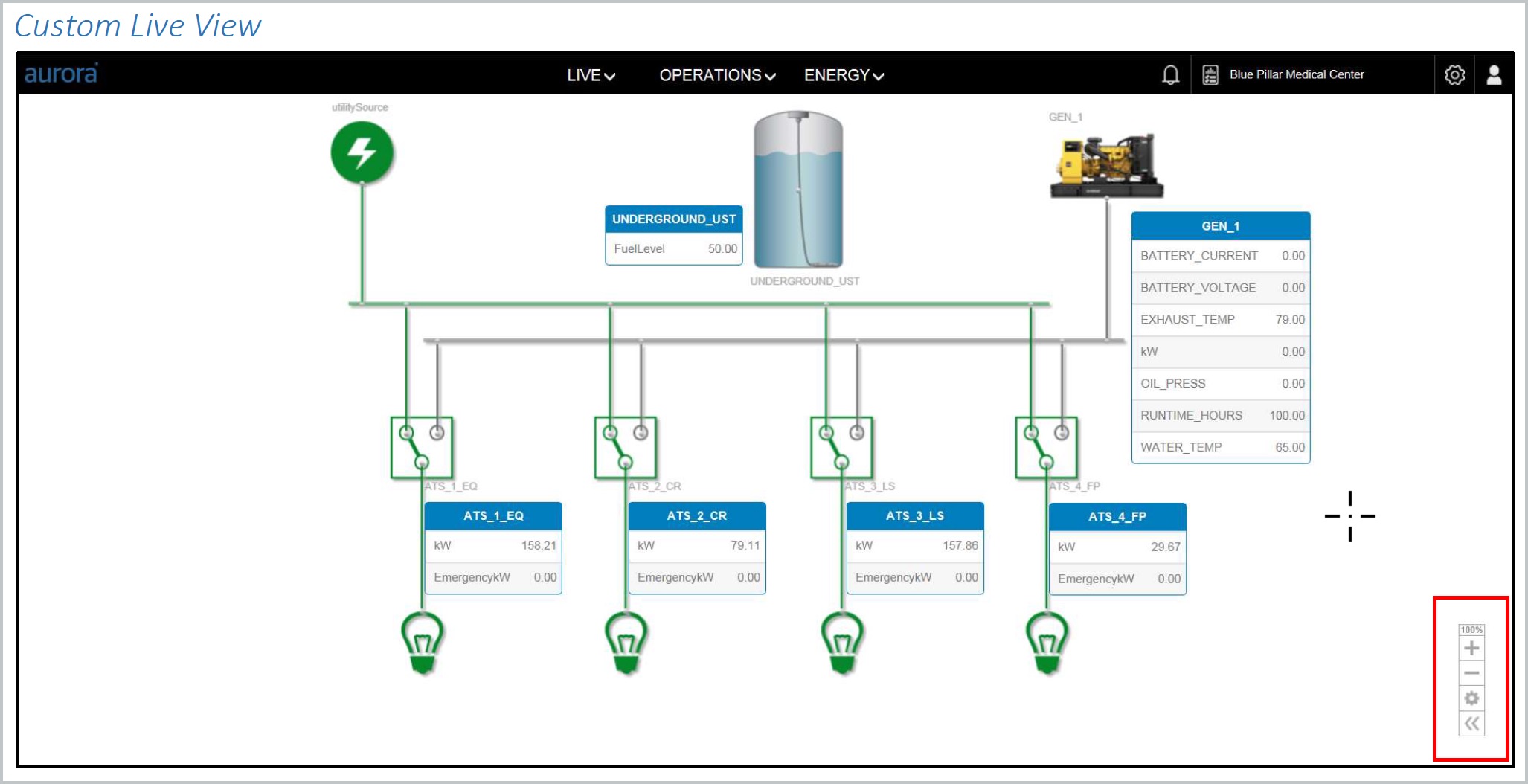
Live View On-Screen Controls
Select the [+] button to zoom in.
Select the [-] button to zoom out.
Select the [<<] button to pan around in the live view.
Equipment Details
Equipment parameters are accessed from the Live View in order to monitor equipment. To access equipment details from the Live View, click an equipment icon in the Live View so that the platform displays equipment details.
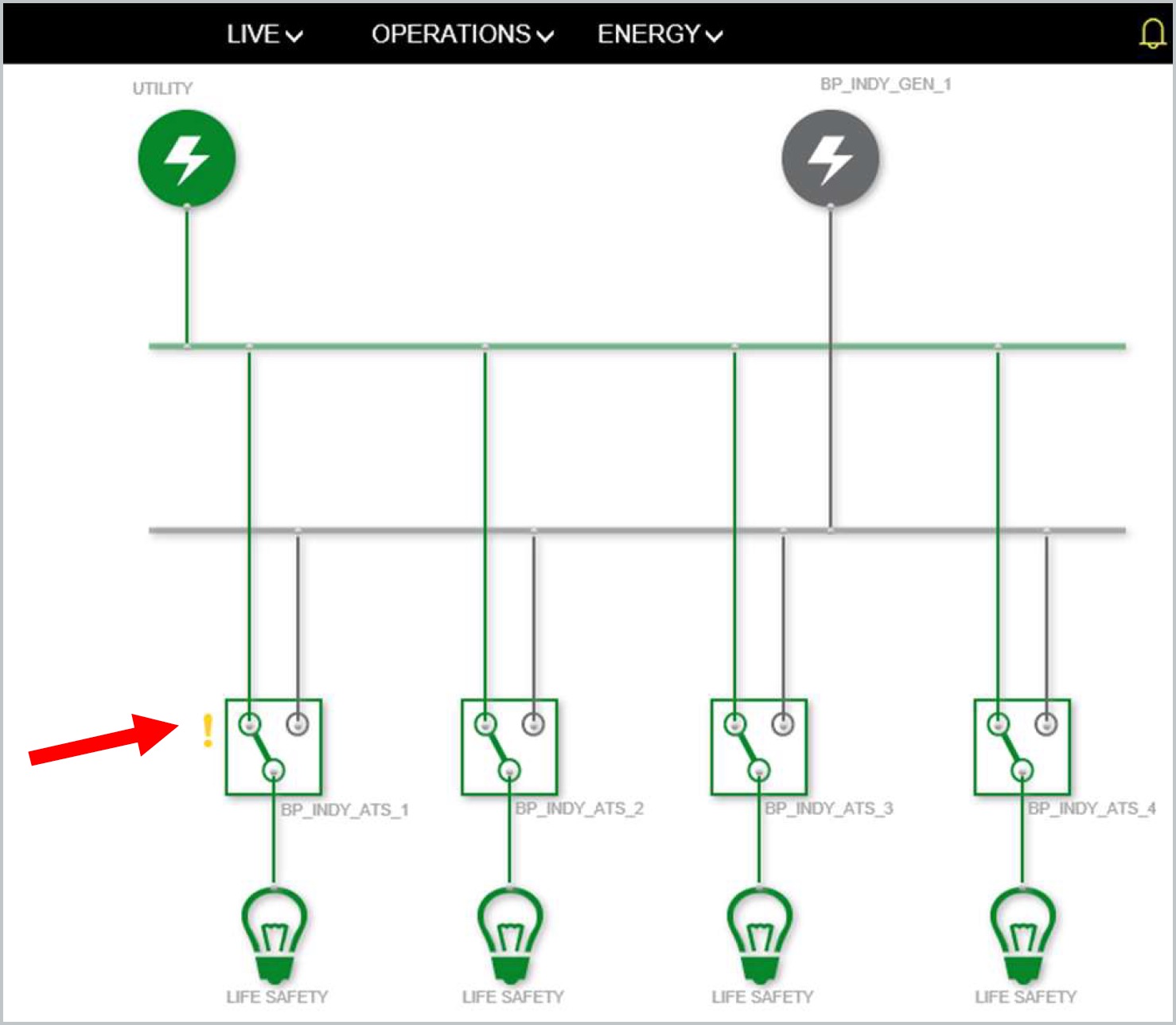
Yellow Alarm Indicator
An exclamation mark will appear next to equipment icon in order to flag it when an alarm is triggered. These alarm flags are described here.
Red | Active alarm. Will not clear without action to remove alarm condition. |
|---|---|
Yellow | Indicates inactive alarm awaiting acknowledgement. To access equipment alarms from the Live View, click to select the alarm icon next to the equipment. The interface then provides alarm details. |
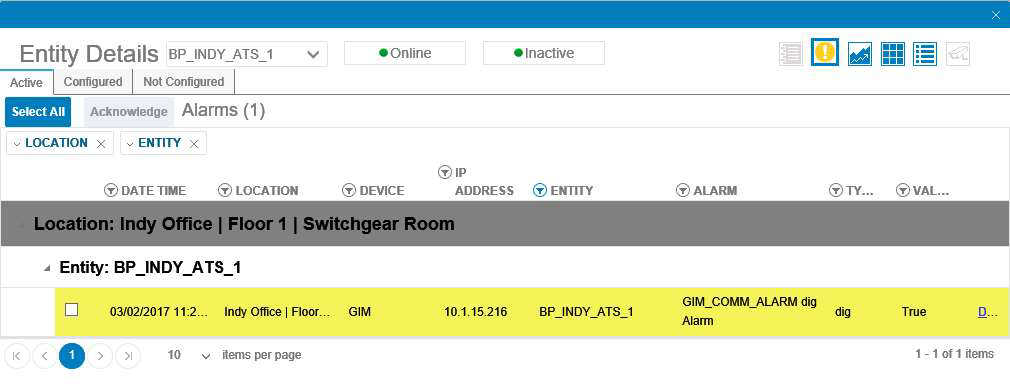
Alarm Entity Details